
By Christopher Groux
Writer
0
Share
Newsweek is a Trust Project member
See more of our trusted coverage when you search.Prefer Newsweek on Googleto see more of our trusted coverage when you search.
Fortnite Creative is finally available to everyone, and we want you to make the most of it. The toolset will look familiar to Fortnite fans, but there are a few things about the suite that could use additional explanation. This guide covers a few frequently asked questions from players who are just getting started.
How to Get Weapons in Fortnite Creative
Because Creative is such a freeform mode, there are many ways to get weapons on any given map. Here are some tips.
Read More on Video Games
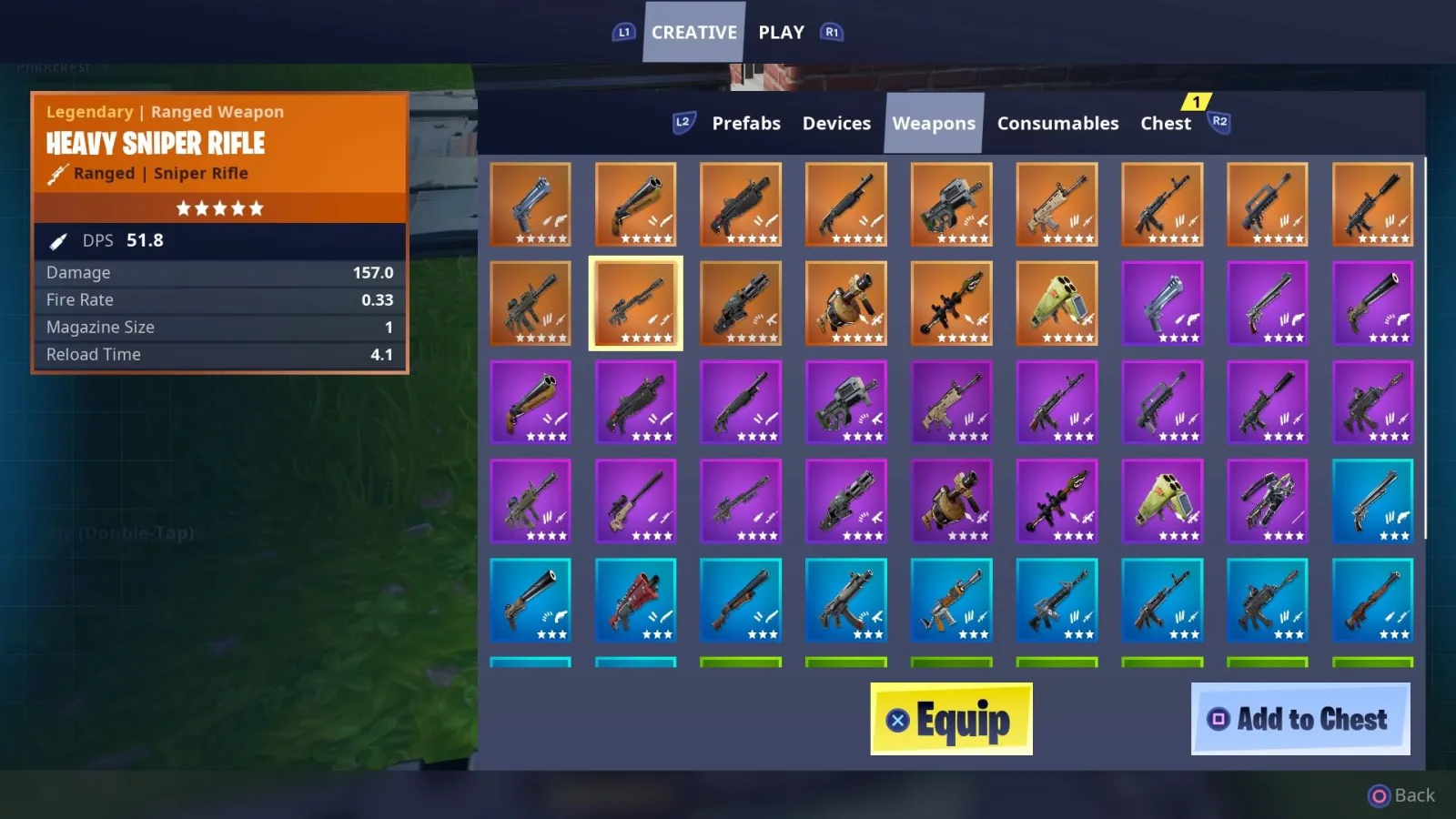
The Cellphone: If you're just lounging around in edit mode, all you have to do is press up on the d-pad to display your inventory menu. Use the shoulder buttons to scroll over to "Creative" and select "Weapons." There, you'll see a menu with every weapon in the game. Additionally you can press start to bring up the main menu and go to "My Island." In the "Game Settings" section you can enable Infinite Ammo.
...
Chests/Llamas: If you're playing a map, someone may have hidden weapons in a Chest. To make your own Chest or Llama, scroll over to the weapons or items you want to add and press the designated button to "add to chest." Go to the "Chest" subhead of the menu. You'll be able to press a button to spawn a Chest or Llama with those items.

...
Dropped Items: Beyond equipping items from the "Creative" menu, you can also drop them from the "Play" menu as well. This allows you to line up a bunch of weapons on the ground if that's how you want to do it.
How to Use the Item Spawner
Another way to ensure players on your map get weapons is to use an Item Spawner. The process is a bit confusing, so we'll walk you through it and offer some additional details about how Spawners behave.
Item Spawners are found in the Equipment section of your Cellphone Inventory. It might be difficult to place one, but, if you're having trouble, just make sure it's on solid ground. Placing one in a prefab area or on a basic material floor should do the trick.
Once the Item Spawner is down, you need to put items in it. Spawners can hold pretty much anything you want including weapons, ammo, vehicles and consumables.
To put an item in the Item Spawner, make sure the desired item is an equipped part of your inventory. Then press up on the d-pad and scroll over to the "Play" menu as opposed to "Creative."

...
Once in the Play menu, you can drag the item from your inventory to the Spawner if you're on mobile or PC. On console, simply press the button to drop the item while standing on top of the trap. The item will get sucked into it. When taken, you have to wait about 30 seconds for another one to appear.
You can place several items in a single trap using the above method as well. When you do that, items spawn in the order in which they were placed. Right now there are no ways to customize Item Spawners, but that may be added in the future.
Permissions
If you want to allow your friends or other players to make edits to your Island, it's pretty easy. Just bring up the menu, select "My Island," scroll over to "Island Tools" and set the Island Edit Permissions to "Everyone." That means other people with the code for your Island can make changes to it. This is great for any collaborative project.

...
Unfortunately, sharing your own island codes is restricted right now, so we'll do our best to update this guide with more details on how that process works once it's available.
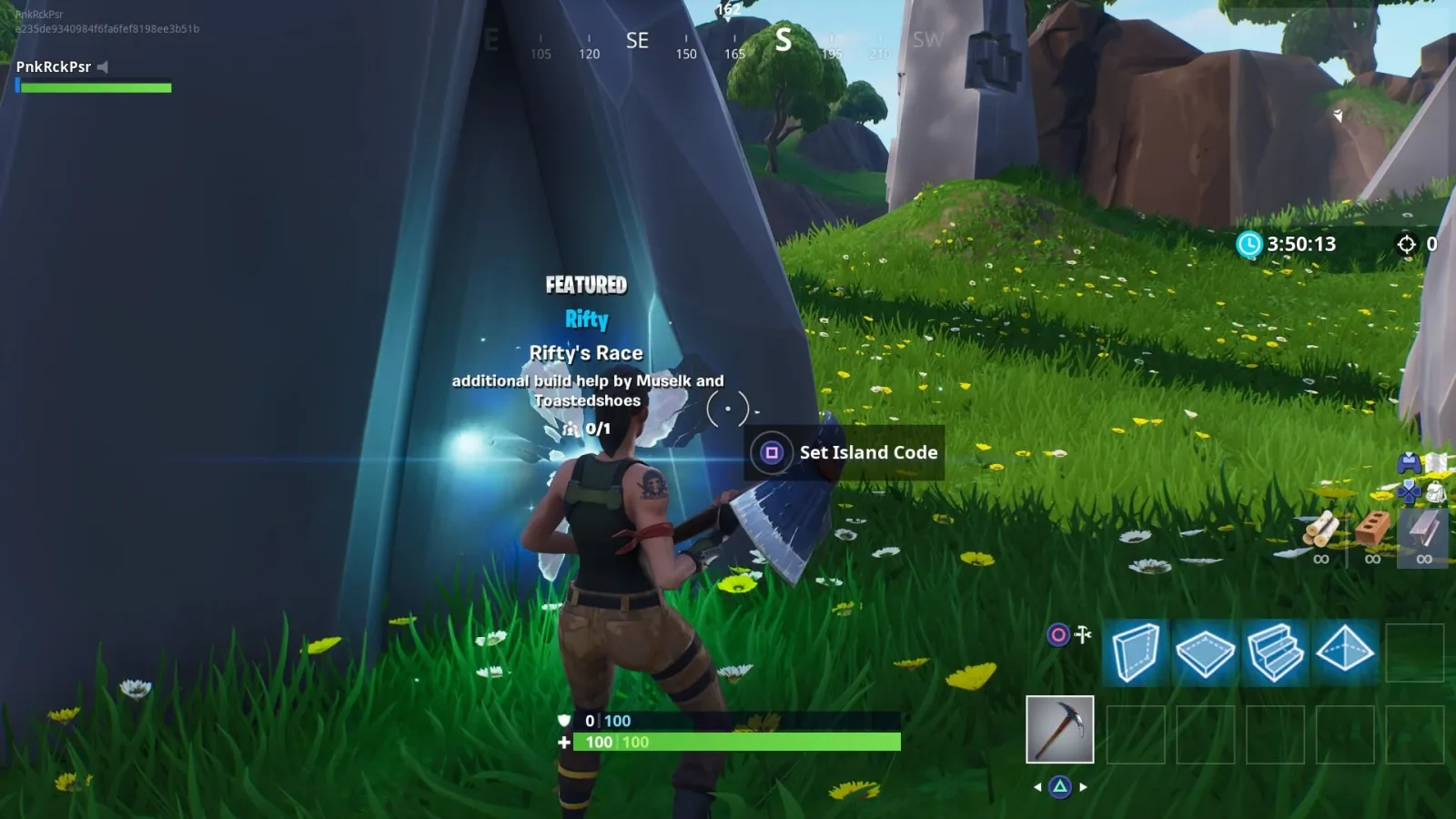
If you want to play the creations of others, though, there are some rifts to enter in the Creative Hub. Beyond hopping through those Rifts, you can also press a button to "Set Island Code." This allows you to manually enter any codes you may find online.
...
That should be enough to help you sort out your lingering issues with Fortnite Creative. If you have any more questions, list them below in the comments section.
Fortnite is available now on PS4, Xbox One, Switch, PC and mobile.
View 0 Comments
Submit Correction
View Editorial & AI Guidelines